History
My Linux journey started years back in School. As part of my College path we got courses in Linux, just the basic stuff:
Making directories
Setting up an Apache web server
Apps Like nano, VIM, etc
As I was eager to learn more about this operation system and its capabilities I accepted the challenge of the teacher and started my first dual-boot system. Based on Windows 10 and Ubuntu 18.04 I believe.
Fast forward a bit and I didn’t bother using Linux anymore and in my field of Work there was Microsoft as the dominant player in the market for Desktop OS, Server and later on Cloud services. In these years I kept tabs on Linux and gaming on Linux became a bit more popular. But for the games I played there were no real solutions until Valve announced the Steam Deck and Proton compatibility layer.
I tried Pop_OS in the early days of proton but it didn’t enthuse me enough to create a dual-boot situation or even switch to Linux. Some time later (fast forward to mid 2025 start 2026) Proton had time to mature and the steam machine should be on its way. And Microsoft being the company that it is, they kept jamming useless sh*t down our throats which let me to believe there should be another way.
Present day
Little over 2 months ago I bit the bullet and decided I would like to try a dual-boot again. Just to see if I like it or not and to check out if the games I play run under Linux. The guinea pig was my Lenovo gamging laptop with the following specs:
Lenovo Legion 5i Pro
>> i7 14700HX
>> 32GB DDR5
>> NVIDIA RTX 4070
>> 4TB Windows NVMe
>> 1TB Linux NVMe
My only preparation and research for this step was some Reddit searches and Youtube video’s about gaming on Linux. So after compiling a list of possible distro’s I picked up my magic eraser and removed the distro’s I tried before.
Ubuntu
PoP_OS
Bazzite
Mint
CachyOS
As Ubuntu is using GNOME as its desktop environment (DE) it would feel familiar which is a good start, but it seemed not the best optimized distro for gaming regarding posts of the Reddit Linux community’s so it would not be my choice for now.
PoP_OS was also a contender and uses the cosmic Desktop environment which is still very new and almost BETA like but looks very nice. I tried PoP_OS already in the past and wanted something else, so no PoP_OS for now.
Bazzite looks cool but the filesystem immutability and my interests in tinkering and figuring stuff out should/would be a lot more difficult on this distro because of its immutability. That meant is was off the list for now!
Linux Mint was one of the distro’s very praised of its ease of use and Windows like navigation. But it seemed old and not appealing to me and that only left one option on my list:
CachyOS
Arch based, rolling releases (lots of updates continuously) and the community praised it for its Proton version and kernel-optimizations for gaming.
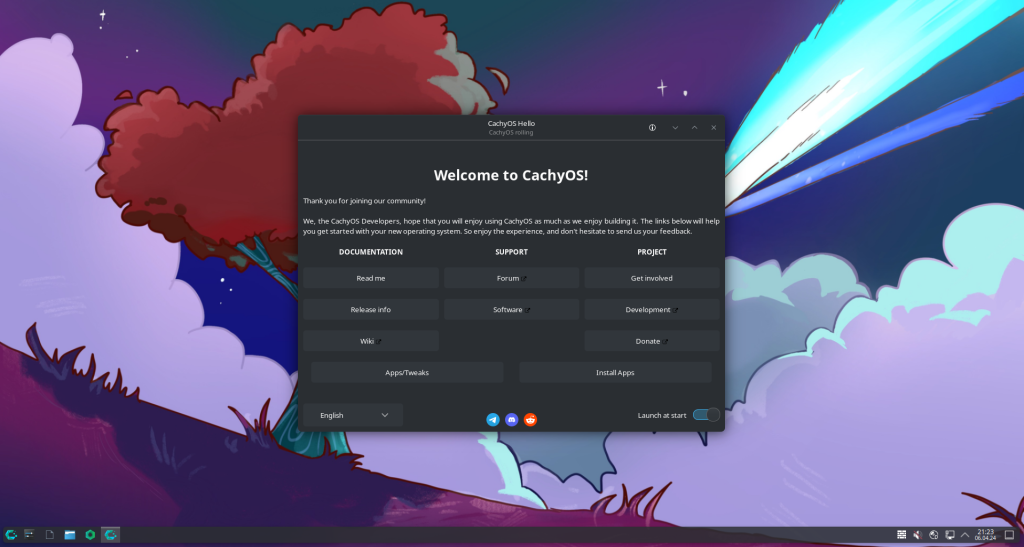
The install went pretty smoothly, next, next finish…. or not. CachyOS is very customizable and gives a lot of options, but also as a “noob” this feels very overwelming. After going through all the possible desktop environments my first install came down to this:
- Limine Bootloader (Btfrs filesystem and snapshot restore from bootloader) with de COSMIC DE. Seemed cool and new.
And new it was. The UI didn’t react the way I wanted and it was all more of a struggle than I liked. So switching DE’s was on my shortlist and I decided I wanted to try Plasma by KDE. It is a very recognized DE in the Linux community and has been going strong for many years. It is also praised for lots of customization options to make it look the way you want to. So I looked up some command’s and switching desktop environments seemed straight forward. Oh boy I was wrong:
#install the plasma desktop and desktop display manager
sudo pacman -Syyu plasma plasma-meta sddm cachyos-kde-settings
#disable cosmic
sudo systemctl disable cosmic-greeter
#Enable the Plasma display manager
sudo systemctl enable sddm
#reboot the system
sudo reboot
#remove all of cosmic from the system
sudo pacman -Rns cosmic cosmic-session cosmic-files cosmic-settings cosmic-term cosmic-greeter
Execution the command’s in the ~fish terminal went smoothly. But it turned out that after a reboot at the end my whole desktop environment would not launch anymore and the only visible indication that the system was up and running was the TTY1 interface blinking at the top left. Sure this was fixable by manually starting the display manger every time the laptop booted, not ideal.
After some Googling I decided that it was best to put a fresh install on it as this is the recommended way of switching desktop environments. So a fresh install it was and things went kind of smoothly afterwards. Games Launched no issues with NVIDIA drivers or strange behaviors en Plasma was a treat in all the possibility’s. I think I found my place!
Secure Boot: Secure-boot was a different story. After installing my games and playing for a bit i knew that Battlefield 6 would not run on Linux because of the used anti-cheat, so dual-boot to the rescue right? Well not directly as it seems secure-boot should be enabled for Battlefield 6 to boot and setting it up has its own difficulties.
Just make sure to follow the process on the CachyOS WiKi and try to enable secure boot setup, also dont forget to disable Key provisioning in your BIOS… It took me a few hours, lots of reboots and head-smashing + Googling for it to be setup functionally. It may help to lookup how you enable secure-boot setup-mode on your particular motherboard/Laptop. After that we were off to the races. Limine Boot manager and secure-boot working. Overall a smooth experience and a very pleasant operating system on my laptop. NVIDIA Drivers were preinstalled and working nicely as was almost every piece of software I threw at it.
Desktop PC to CachyOS
The desktop PC is spec wise a way better fit for a dual-boot situation as it is a all AMD build:
AMD RYZEN 7 7800X3D
MSI X870e Gaming Plus Wifi
32GB DDR5 RAM
4TB Linux NVMe
2TB Windows NVMe
Radeon RX 6900XT
But the sad reality was that I was in for a few surprises. After all the knowledge I gathered from my laptop dual-boot setup this should be easy right? Well wrong… I was not able to get secure boot working on the first motherboard. After a lot of trying, rebooting, bios settings, bios updates, re-flashes it seems the board gave up his life; No more post screen or boot option, BIOS or anything, it seems dead. So I was completely done with the BIOS from the Gigabyte board and I went out and bought a new MSI board. I figured that, a while you are in there job, was adding a 4TB of NVMe storage for the OS to live on instead of a SATA SSD that was still in the system.
The final went smoothly, latest ISO from the website and we were off. Dual-booting with secure boot was in the reach of our hands. But it seems that there was no luck to be found in this journey and learning workarounds is very necessary. After setting everything up it turns out Limine does not want to boot Windows. After we select the Windows install it automatically discovered the screen turns to black and the system never boots. Up until writing this post I have not figured out a fix, and for now I am fine with a workaround. Via de Quickboot option in my BIOS (F11) I can select the Windows drive to boot from and it works fine for the few times I need to load into Windows.
So in the end secure boot is setup and working, Windows can be booted from the BIOS quickboot option under F11 and the systems runs completely fine!
Windows is only used for app’s/games that I want to play and are not available on Linux or I don’t find a good alternative available. So for now, this is the OS of choice and inspiration for other tech stack changes I made this year!
Leave a Reply